
前言
大家好,我是木斯佳,还记得之前做那个地图出行应用时,我面临过一个选择:是用系统自带的定位能力,还是接入高德的定位SDK?
很多小伙伴会想,这事儿很简单——鸿蒙系统本身就有位置服务API,几行代码就能拿到经纬度,何必再多接一个SDK?
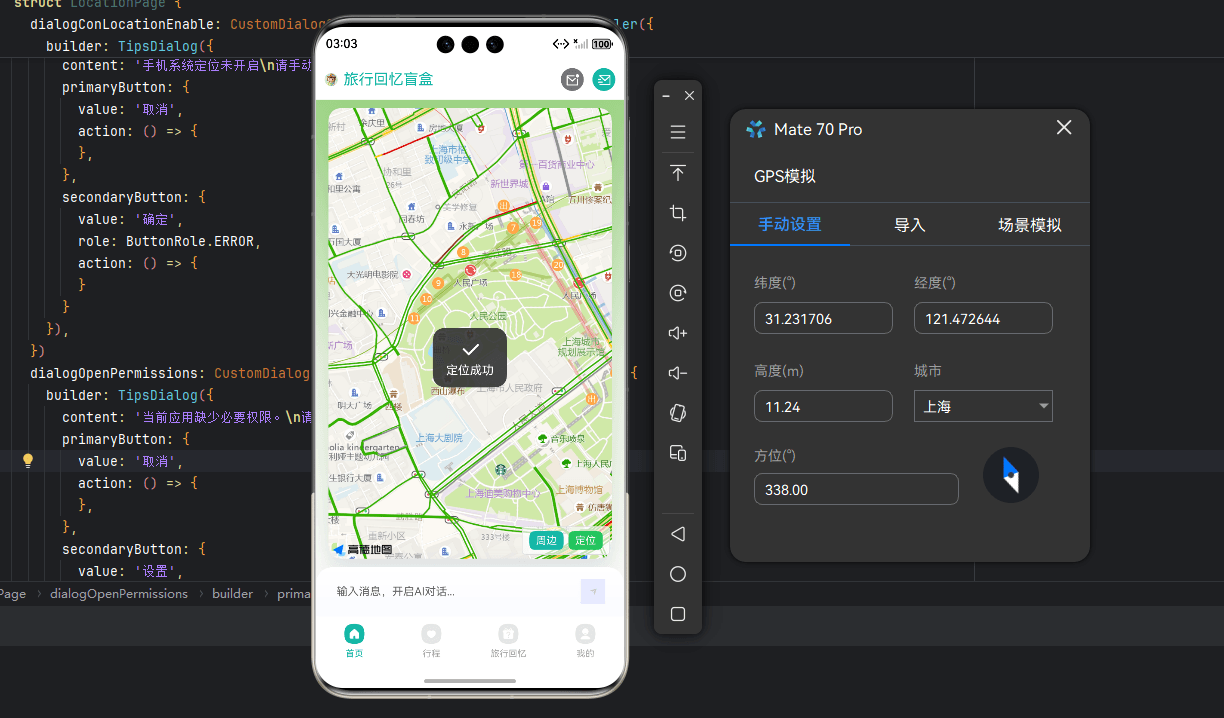
但现实需求往往不是“拿到经纬度”那么简单。比如需要逆地理编码判断用户是否在某个区域内,需要处理不同坐标系之间的转换(GPS的WGS-84、高德的GCJ-02、百度的BD-09)。如果后续还要深度去做地图和导航,那工程量就太大了。特别是跨端开发者,同一套选型方案往往可以避免很多不必要的麻烦。
鸿蒙星河版定位SDK是高德开放的一个鸿蒙侧专业的定位SDK,开发者可以使用ArkTS接口开发应用集成定位功能,组件使用ArkUI原生组件,兼容方舟UI框架。代码全面适配鸿蒙NEXTSDK,所有系统接口均使用鸿蒙NEXTAPI。
但话说回来,三方SDK对接,坑永远比想象的多。
权限怎么配?隐私合规怎么处理?单次定位和连续定位的参数有什么区别?为什么有时候定位失败有时候又能成功?这些问题在我第一次接入时都踩过一遍。
所以就有了这篇文章。我想把自己踩过的坑、总结的经验整理出来,从一个真实的地图应用场景出发,带你一步步完成高德定位SDK的接入,实现连续定位这个最基础也最常用的功能。
一、准备工作
1.1 项目添加依赖
{
  "dependencies": {
    "@amap/amap_lbs_common": ">=1.2.2",      // 高德定位通用库
    "@amap/amap_lbs_location": ">=1.2.2",   // 高德定位SDK
    "@amap/amap_lbs_map3d": ">=2.2.3"       // 高德地图3D SDK
  }
}
在oh-package.json5里加上这三行,然后点一下Sync Now,等着就行。
1.2 申请API Key(劝退的地方)
去高德开放平台注册应用,选择“鸿蒙”平台,包名填你的应用包名。
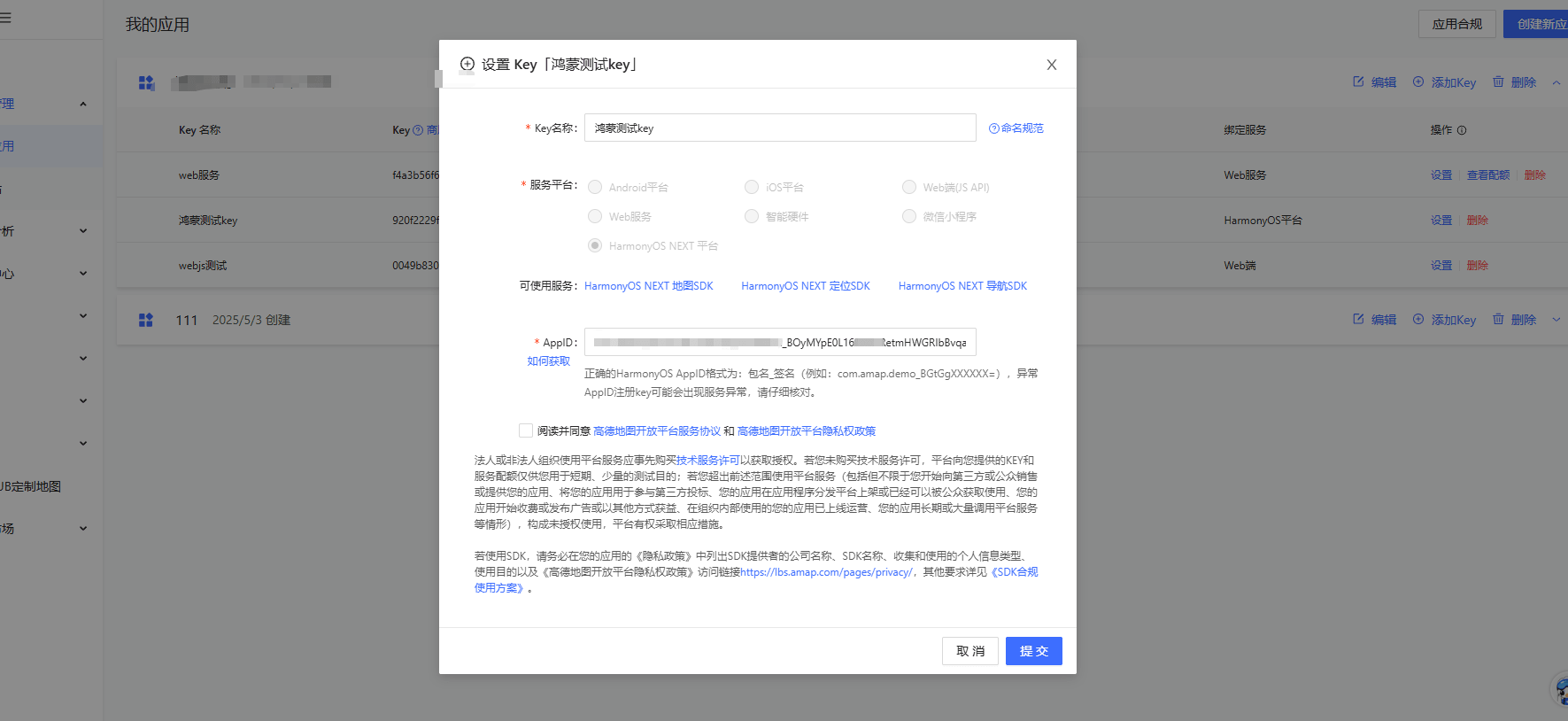
这里有一个小坑点,你申请APPID要获取如何获取AppID
官方给了示例代码,我一开始没搞明白,我建议你按这个步骤来,
1、华为官网配置应用签名
2、工程中正确的引用签名文件,加上下方的示例代码(打印到页面上)。
3、然后打出带签名的hap包,把签名出来的包,拖模拟器运行
4、页面上复制出来appid。好,结束(第一次我差不多弄了半下午)。

请在当前应用的Ability中使用如下代码获取,我建议你自己加上在页面打印出来。
let flag = bundleManager.BundleFlag.GET_BUNDLE_INFO_WITH_SIGNATURE_INFO;
let bundleInfo = bundleManager.getBundleInfoForSelfSync(flag)
let appId = bundleInfo.signatureInfo.appId;
注意事项 1. 获取AppID之前需要先配置应用的签名信息,应用的签名信息配置请参考华为官网的配置应用签名信息指南
2.为了确保鉴权通过,请确保真机调试时使用的key是基于真机获取的appid申请的,而云真机调试时则应使用云真机appid对应的key,正确的appId形式为:“包名_签名信息”, 例如:com.amap.demo_BGtGgVB3ASqU7ar1nHkwX4s0nIexDbEwqNrVoatUDs17GrClWC7V2/zhoYh6tFQHAd5DASWVTEAgvZfzrEGljjs=
拿到Key之后存好,后面每个页面都要用。(你能走到申请完key,我觉得这个入门篇你已经完成一半了)
1.3 权限配置
定位功能绕不开权限。鸿蒙的权限管理比较严格,需要在module.json5里把会用到的权限都声明一遍。
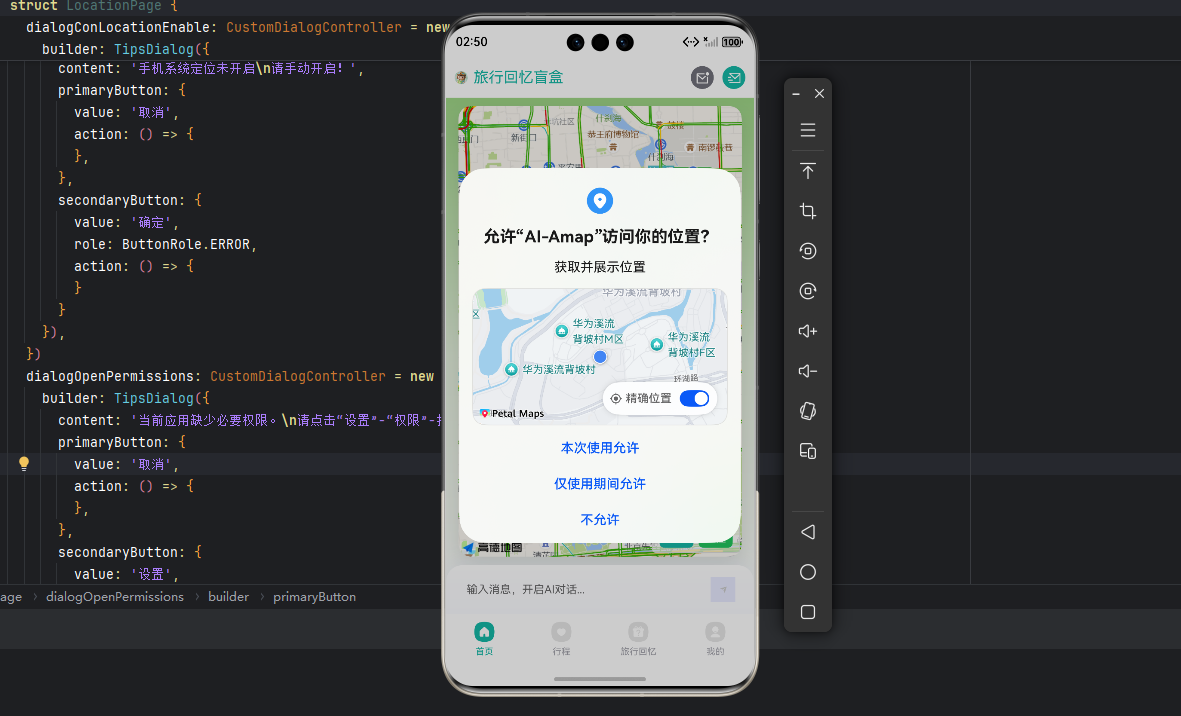
module.json5 权限声明
"requestPermissions": [
  {
    "name": "ohos.permission.APPROXIMATELY_LOCATION",  // 模糊定位权限
    "reason": "$string:Harmony_location_permission_reason",
    "usedScene": {
      "abilities": ["Harmony_location_demoAbility"],
      "when": "always"
    }
  },
  {
    "name": "ohos.permission.LOCATION",  // 精确定位权限
    "reason": "$string:Harmony_location_permission_reason",
    "usedScene": {
      "abilities": ["Harmony_location_demoAbility"],
      "when": "always"
    }
  },
  {
    "name": "ohos.permission.LOCATION_IN_BACKGROUND",  // 后台定位权限
    "reason": "$string:Harmony_location_permission_reason",
    "usedScene": {
      "abilities": ["Harmony_location_demoAbility"],
      "when": "always"
    }
  },
  {
    "name": "ohos.permission.INTERNET",  // 网络权限
    "reason": "$string:Harmony_location_permission_reason",
    "usedScene": {
      "abilities": ["Harmony_location_demoAbility"],
      "when": "always"
    }
  },
  {
    "name": "ohos.permission.KEEP_BACKGROUND_RUNNING",  // 后台运行权限
    "reason": "$string:Harmony_location_permission_reason",
    "usedScene": {
      "abilities": ["Harmony_location_demoAbility"],
      "when": "always"
    }
  }
]
如果你需要应用退到后台还能继续定位,还得在abilities里加一行:
"abilities": [
  {
    "name": "Harmony_location_demoAbility",
    "backgroundModes": ["location"],  // 支持后台定位
    // ... 其他配置
  }
]
这一步容易漏,后台定位跑不起来的时候,可以先检查这里。
二、参考代码上手搭建一个简易Demo
我这里因为有我自己的业务代码,我就给大家分享我之前上手用的社区的教程代码二改一下。
2.1 常量定义(CommonConstants.ets)
import { Permissions } from '@ohos.abilityAccessCtrl';
export class CommonConstants {
  // 需要请求的权限列表
  static readonly REQUEST_PERMISSIONS: Array<Permissions> = [
    'ohos.permission.APPROXIMATELY_LOCATION',  // 模糊定位
    'ohos.permission.LOCATION',                // 精确定位
  ];
  // 初始化值
  static readonly INITIALIZATION_VALUE: string = '0';
}
把权限列表抽成常量,方便多个页面复用。后面请求权限的时候直接拿这个数组就行。
2.2 全局上下文管理(GlobalThis.ets)
import { common } from '@kit.AbilityKit';
// 单例模式管理全局上下文
export class GlobalThis {
  private constructor() {}

  private static instance: GlobalThis;
  private _uiContexts = new Map<string, common.UIAbilityContext>();
  // 获取单例实例
  public static getInstance(): GlobalThis {
    if (!GlobalThis.instance) {
      GlobalThis.instance = new GlobalThis();
    }
    return GlobalThis.instance;
  }
  // 获取上下文
  getContext(key: string): common.UIAbilityContext | undefined {
    return this._uiContexts.get(key);
  }
  // 设置上下文
  setContext(key: string, value: common.UIAbilityContext): void {
    this._uiContexts.set(key, value);
  }
}
鸿蒙很多API需要传入Context。这个单例类就是用来在Ability创建时保存上下文,然后在任意页面里都能拿到。后面你会看到它频繁出现。
2.3 应用入口(Harmony_location_demoAbility.ets)
import UIAbility from '@ohos.app.ability.UIAbility';
import { AppInfo } from '@amap/amap_lbs_common';
import { GlobalThis } from './GlobalThis';
export default class Harmony_location_demoAbility extends UIAbility {
  onCreate(want: Want, launchParam: AbilityConstant.LaunchParam): void {
    // 保存全局上下文,供其他页面使用
    GlobalThis.getInstance().setContext('context', this.context);
  }
  onWindowStageCreate(windowStage: window.WindowStage): void {
    // 加载主页面
    windowStage.loadContent('pages/Index', (err, data) => {
      if (err.code) {
        hilog.error(0x0000, 'testTag', 'Failed to load the content.');
        return;
      }
      hilog.info(0x0000, 'testTag', 'Succeeded in loading the content.');
    });

    // 获取应用包名
    let res = AppInfo.getPackageName(getContext(this));
    hilog.info(0x0000, 'testTag', '%{public}s', res);
  }
}
入口文件做了两件事:保存上下文、加载主页面。AppInfo.getPackageName是高德SDK提供的方法,可以用来验证SDK是否集成成功。
2.3 主页面导航(Index.ets)
这里你可以根据实际情况自己定义。你可以放几个button去跑一下官网的API Demo
@Entry
@Component
struct Index {
  pageInfos: NavPathStack = new NavPathStack();
  build() {
    Navigation(this.pageInfos) {
      Scroll() {
        Column() {
          // 定位功能入口
          Button('定位')
            .ButtonCommonStyle()
            .onClick(() => {
              this.pageInfos.pushPath({ name: 'LocationPage' });
            })
          Divider()
          // 地理围栏功能入口

          // 距离计算功能入口

          // 坐标转换功能入口

          // 区域判断功能入口

        }
      }
    }
  }
}
// 按钮通用样式扩展
@Extend(Button)
function ButtonCommonStyle() {
  .stateEffect(true)
  .type(ButtonType.Normal)
  .width('100%')
  .backgroundColor(Color.Transparent)
  .align(Alignment.Start)
  .fontColor(Color.Black)
  .padding({ left:32, top:16, bottom:16, right:16 })
  .backgroundColor(Color.White)
}
简单实现个导航菜单,点不同的按钮跳到对应的功能页面。样式统一用ButtonCommonStyle,保证所有按钮看起来一致。
三、定位功能详解(LocationPage.ets)
3.1 SDK 初始化
const key = "此处替换官网申请的Key";  // 替换为你的高德 API Key
aboutToAppear() {
  // 设置 API Key
  AMapLocationManagerImpl.setApiKey(key);

  // 更新隐私合规状态
  AMapLocationManagerImpl.updatePrivacyShow(
    AMapPrivacyShowStatus.DidShow,      // 已展示隐私政策
    AMapPrivacyInfoStatus.DidContain,   // 已包含隐私信息
    getContext(this)
  );

  // 同意隐私政策
  AMapLocationManagerImpl.updatePrivacyAgree(
    AMapPrivacyAgreeStatus.DidAgree,
    getContext(this)
  );

  // 创建定位管理器实例
  if (this.locationManger === undefined) {
    this.locationManger = new AMapLocationManagerImpl(this.context);
  }
}
高德SDK有个硬性要求:必须先调隐私合规方法,才能初始化定位管理器。顺序是:setApiKey → updatePrivacyShow → updatePrivacyAgree。少一步或者顺序错了,定位都会失败。
3.2 权限检查与请求
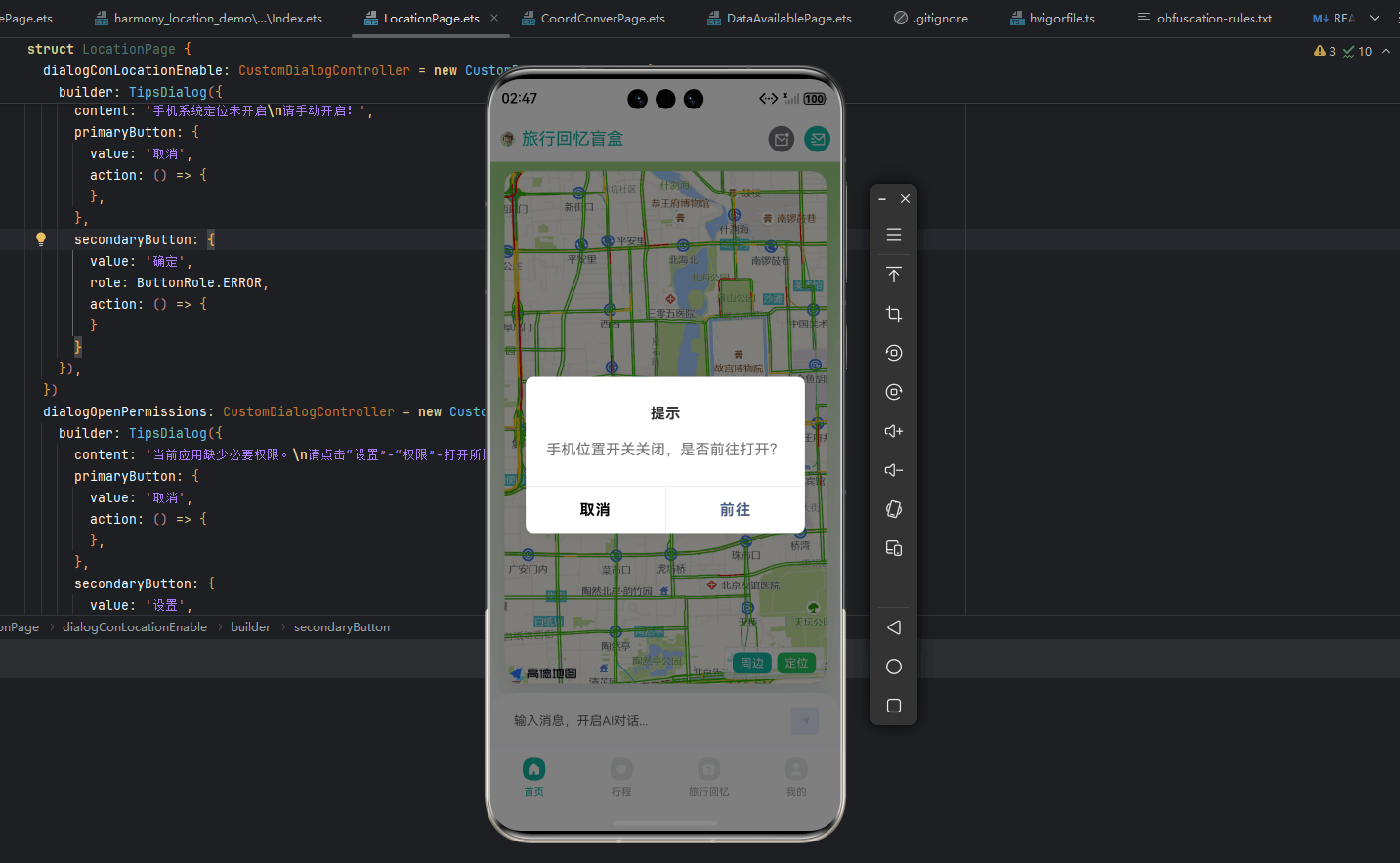
// 检查定位权限
async checkPermissions(): Promise<boolean> {
  // 1. 检查系统定位开关是否开启
  let locationEnabled = geoLocationManager.isLocationEnabled();
  if (!locationEnabled) {
    this.dialogConLocationEnable.open();  // 提示用户开启定位
    return false;
  }

  // 2. 检查应用权限授权状态
  const permissions: Array<Permissions> = ['ohos.permission.APPROXIMATELY_LOCATION'];
  let grantStatus: abilityAccessCtrl.GrantStatus = await this.checkAccessToken(permissions[0]);
  if (grantStatus === abilityAccessCtrl.GrantStatus.PERMISSION_GRANTED) {
    return true;  // 已授权
  } else {
    // 请求权限
    return await this.reqPermissionsFromUser(CommonConstants.REQUEST_PERMISSIONS);
  }
}
// 请求用户授权
async reqPermissionsFromUser(permissions: Array<Permissions>): Promise<boolean> {
  let context: Context = getContext(this) as common.UIAbilityContext;
  let atManager: abilityAccessCtrl.AtManager = abilityAccessCtrl.createAtManager();

  // 弹出权限请求对话框
  let permissionRequestResult = await atManager.requestPermissionsFromUser(context, permissions);
  let grantStatus: Array<number> = permissionRequestResult.authResults;

  // 检查是否所有权限都已授权
  let haspermissions: boolean = false;
  for (let i = 0; i < grantStatus.length; i++) {
    if (grantStatus[i] === 0) {
      haspermissions = true;
    }
  }

  if (!haspermissions) {
    this.dialogOpenPermissions.open();  // 引导用户到设置页面
    return false;
  }
  return true;
}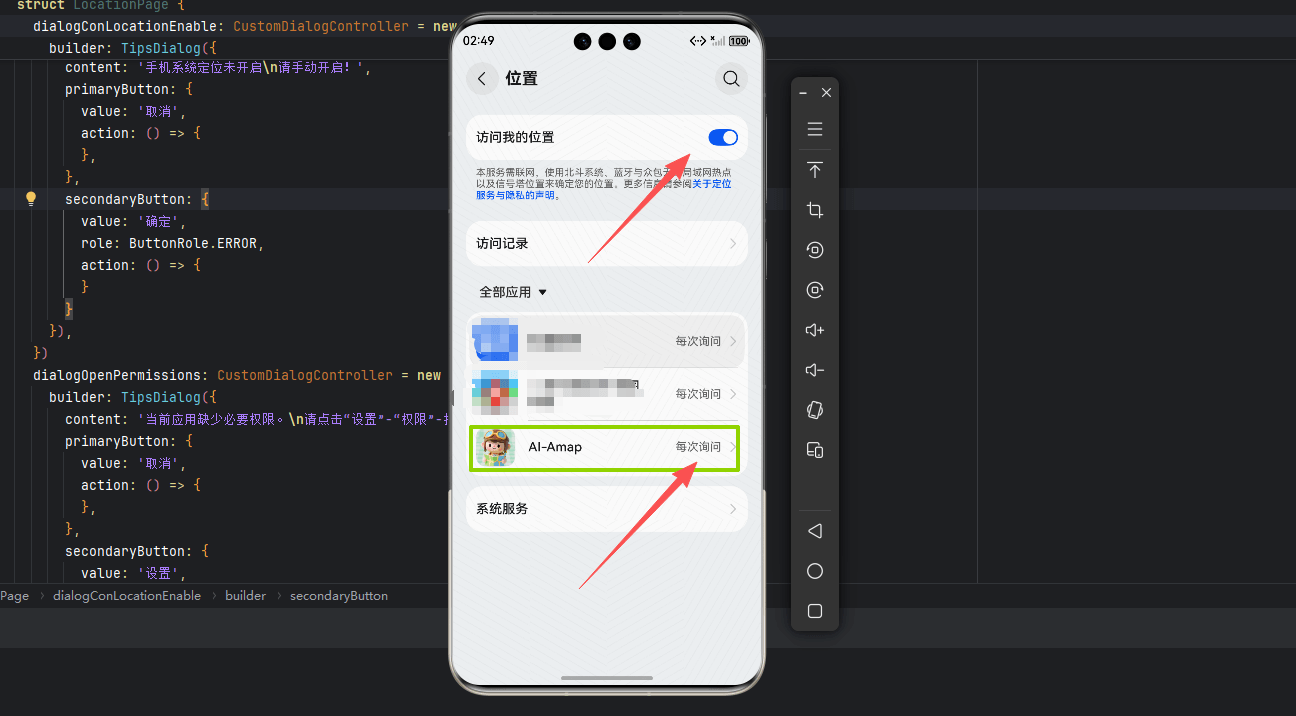
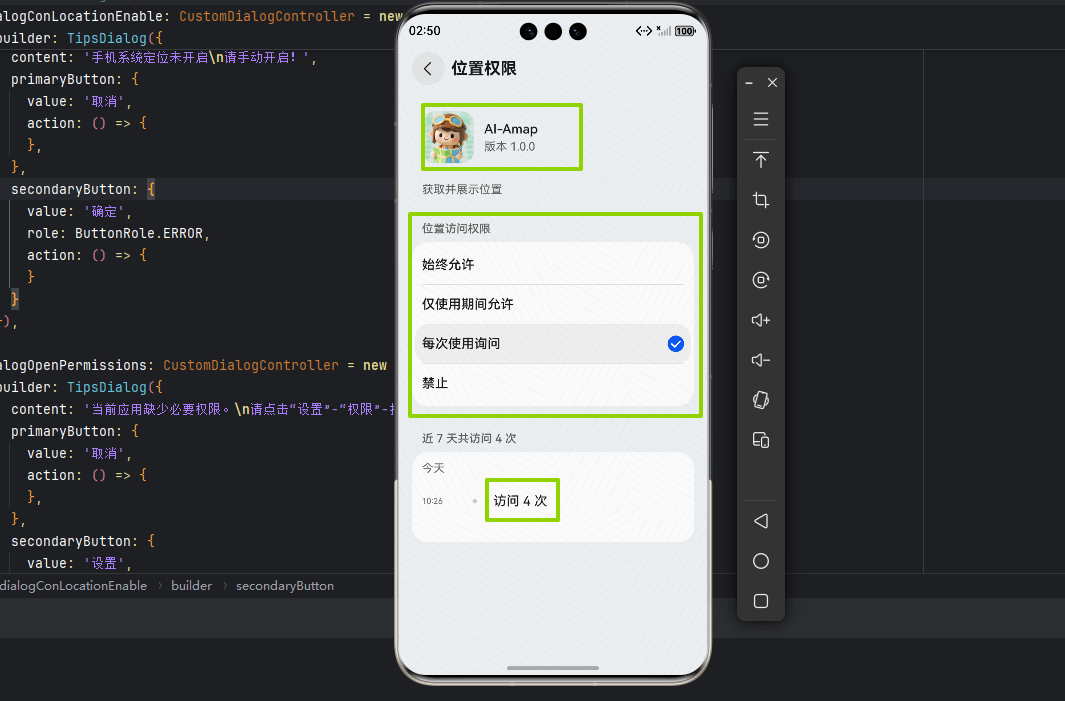
权限检查分两步:先看系统定位开没开,再看应用权限给没给。系统定位没开的话,代码里没法直接打开,只能弹窗提示用户去设置里开。
3.3 单次定位-初始化加载或精准POI等场景
Button("单次定位")
  .onClick(async () => {
    // 1. 检查权限
    let haspermissions = await this.checkPermissions();
    if (haspermissions) {
      // 2. 定义定位监听器
      let listener: IAMapLocationListener = {
        onLocationChanged: (location) => {
          // 定位成功回调
          systemDateTime.getCurrentTime(false).then((time) => {
            const date = new Date(time);
            this.response = " 时间:" + date.toLocaleTimeString() + "\n"
              + " 经度:" + location.longitude + "\n"
              + " 纬度:" + location.latitude + "\n"
              + " 海拔:" + location.altitude + "\n"
              + " 精度:" + location.accuracy + "\n"
              + " 速度:" + location.speed + "\n"
              + " UTC时间:" + location.timeStamp + "\n"
              + " 方向:" + location.direction + "\n"
              + " 自启动以来时间:" + location.timeSinceBoot + "\n"
              + " 附加信息:" + location.additions + "\n"
              + " 附加信息size:" + location.additionSize + "\n"
              + " 逆地理:" + location.reGeo?.desc;
          });
        },
        onLocationError: (error) => {
          // 定位失败回调
          console.error('error  ' + JSON.stringify(error));
        }
      };
      // 3. 配置定位参数
      let options: AMapLocationOption = {
        priority: geoLocationManager.LocationRequestPriority.FIRST_FIX,  // 优先级:快速定位
        scenario: geoLocationManager.LocationRequestScenario.UNSET,      // 场景:未设置
        maxAccuracy: 0,                      // 最大精度(0表示不限制)
        singleLocationTimeout: 3000,         // 单次定位超时时间(毫秒)
        allowsBackgroundLocationUpdates: false,  // 不允许后台定位
        locatingWithReGeocode: false,        // 不进行逆地理编码
        reGeocodeLanguage: AMapLocationReGeocodeLanguage.Chinese,  // 逆地理语言
        isOffset: true                       // 是否进行坐标偏移(国测局加密)
      };
      // 4. 设置监听器和参数
      this.locationManger?.setLocationListener(AMapLocationType.Single, listener);
      this.locationManger?.setLocationOption(AMapLocationType.Single, options);

      // 5. 发起单次定位请求
      this.locationManger?.requestSingleLocation();
    }
  })
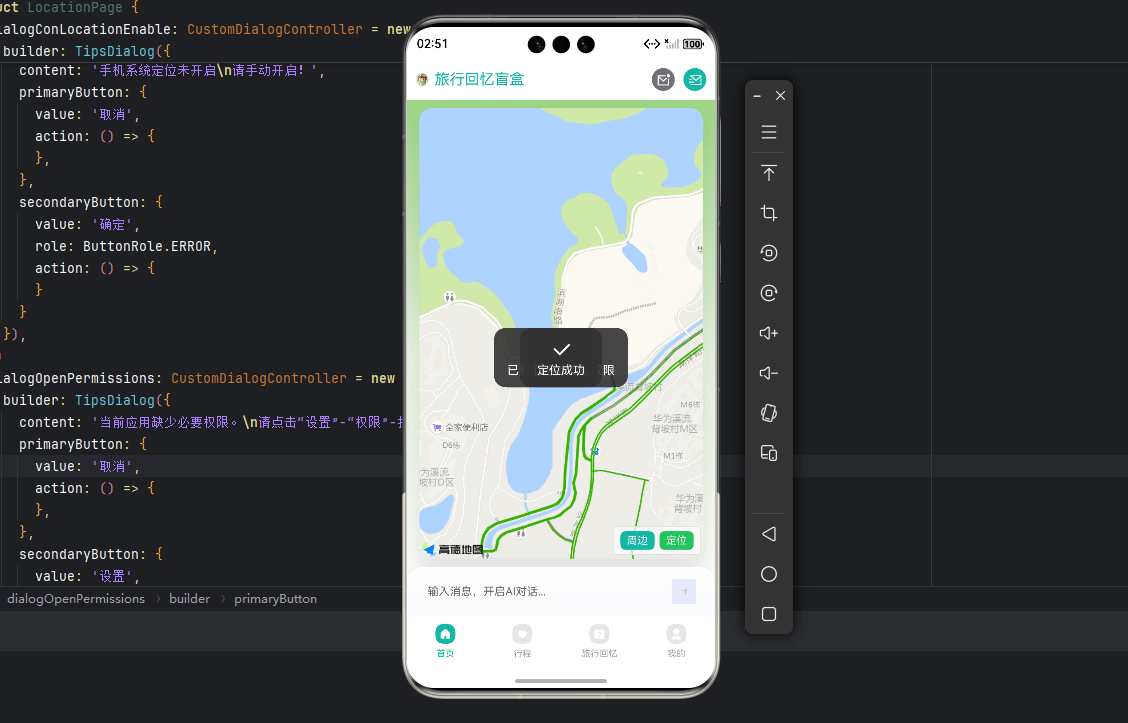
单次定位是最常用的功能,点一下按钮,定位一次,返回结果。listener里定义了成功和失败的回调,options里配置定位参数,最后调用requestSingleLocation()发起请求。
3.4 连续定位-用户设备持续更新定位
Button("开始连续定位")
  .onClick(async () => {
    let haspermissions = await this.checkPermissions();
    if (haspermissions) {
      // 定义定位监听器
      let listener: IAMapLocationListener = {
        onLocationChanged: (location) => {
          // 持续接收定位信息
          systemDateTime.getCurrentTime(false).then((time) => {
            const date = new Date(time);
            this.response = " 时间:" + date.toLocaleTimeString() + "\n"
              + " 经度:" + location.longitude + "\n"
              + " 纬度:" + location.latitude + "\n"
              // ... 其他信息
          });
        },
        onLocationError: (error) => {
          console.error('error  ' + JSON.stringify(error));
        }
      };
      // 配置连续定位参数
      let options: AMapLocationOption = {
        priority: geoLocationManager.LocationRequestPriority.FIRST_FIX,
        scenario: geoLocationManager.LocationRequestScenario.UNSET,
        timeInterval: 2,           // 定位时间间隔(秒)
        distanceInterval: 0,       // 定位距离间隔(米,0表示不限制)
        maxAccuracy: 20,           // 最大精度(米)
        allowsBackgroundLocationUpdates: false,
        singleLocationTimeout: 5000,
        locatingWithReGeocode: true,   // 进行逆地理编码
        reGeocodeLanguage: AMapLocationReGeocodeLanguage.Chinese,
        isOffset: true
      };
      this.locationManger?.setLocationListener(AMapLocationType.Updating, listener);
      this.locationManger?.setLocationOption(AMapLocationType.Updating, options);

      // 开始连续定位
      this.locationManger?.startUpdatingLocation();
    }
  })
// 停止连续定位
Button("停止连续定位")
  .onClick(() => {
    this.locationManger?.stopUpdatingLocation();
  })
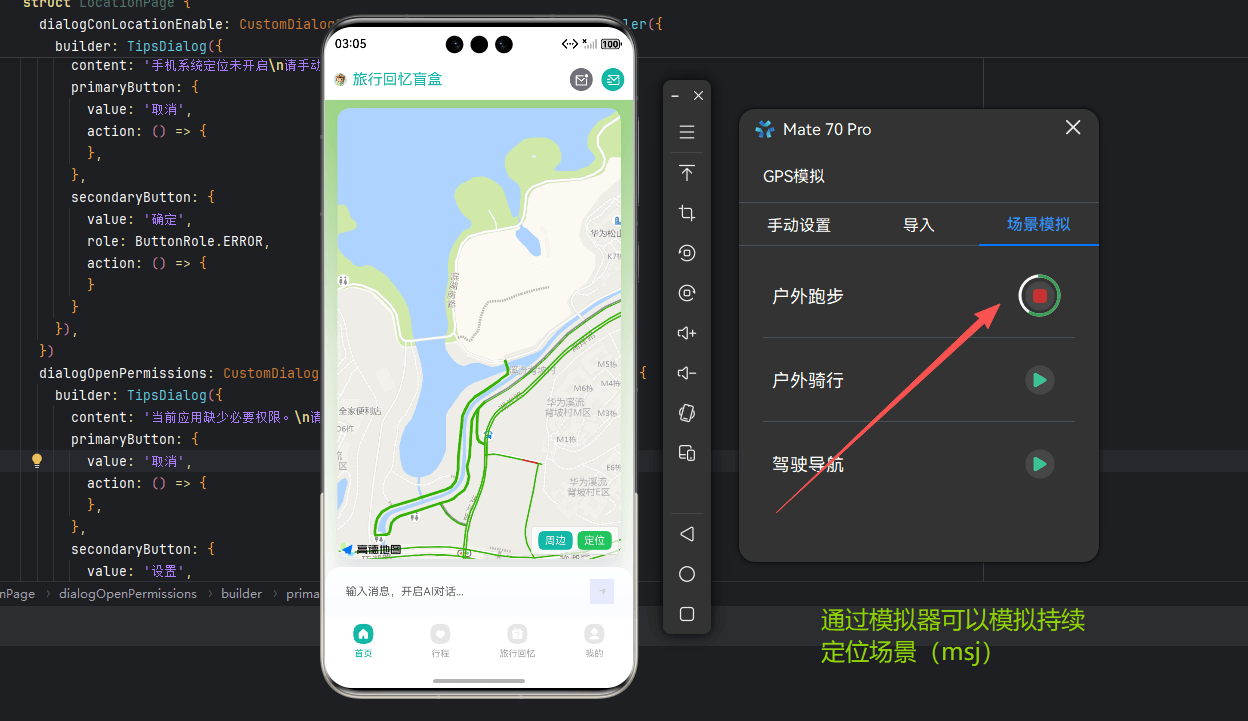
连续定位适合运动轨迹、导航等场景。区别主要在options里多了timeInterval,表示每隔几秒更新一次位置。记得提供停止按钮,不然会一直定下去,耗电很快。
3.5 后台定位-省电或保活场景
// 开启后台定位
Button("开启后台定位")
  .onClick(async () => {
    let haspermissions = await this.checkPermissions();
    if (haspermissions) {
      // 启动后台长时任务
      this.locationManger?.startContinuousTask();
    }
  })
// 停止后台定位
Button("停止后台定位")
  .onClick(() => {
    // 停止后台长时任务
    this.locationManger?.stopContinuousTask();
  })
后台定位需要配合前面module.json5里的backgroundModes配置。startContinuousTask()是告诉系统:我要在后台持续定位,你别把我杀了。
3.6 获取最后定位-APP缓存、二次打开场景
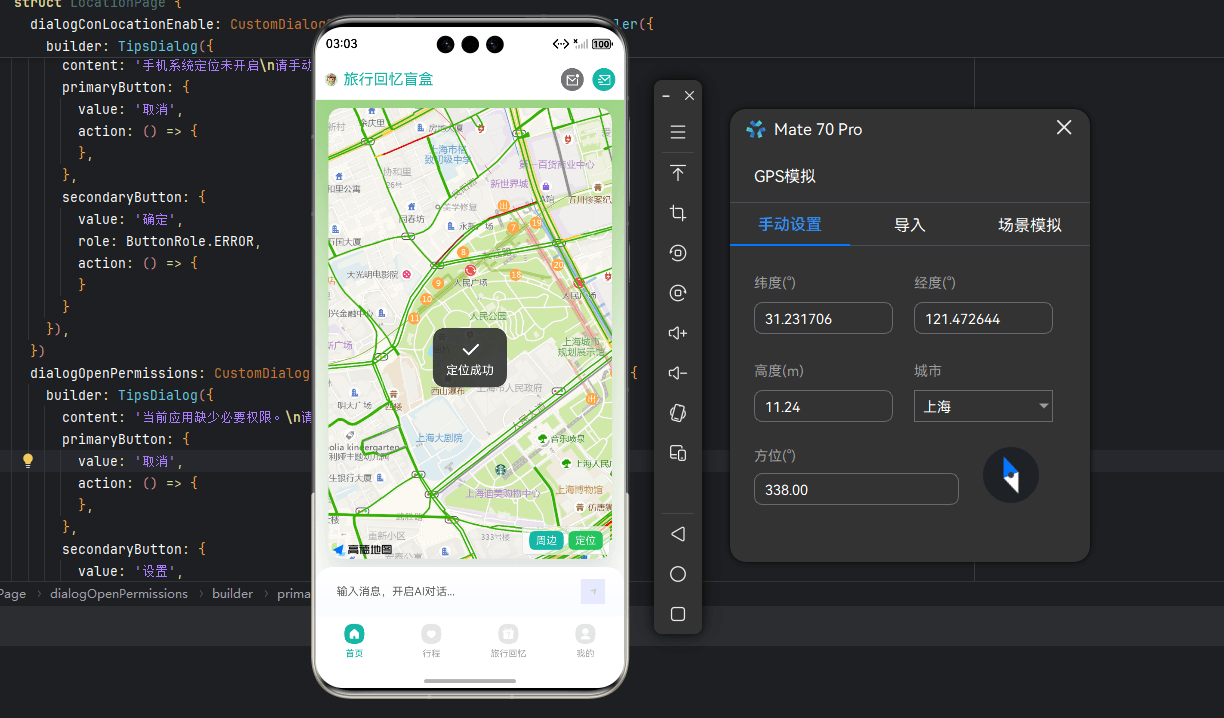
Button("最后定位")
  .onClick(() => {
    // 定义监听器
    let listener: IAMapLocationListener = {
      onLocationChanged: (location) => {
        // 获取到最后一次定位信息
        systemDateTime.getCurrentTime(false).then((time) => {
          const date = new Date(time);
          this.response = " 时间:" + date.toLocaleTimeString() + "\n"
            + " 经度:" + location.longitude + "\n"
            + " 纬度:" + location.latitude + "\n"
            // ... 其他信息
        });
      },
      onLocationError: (error) => {
        console.error('error  ' + JSON.stringify(error));
      }
    };
    // 配置参数
    let options: AMapLocationOption = {
      allowsBackgroundLocationUpdates: true,
      locatingWithReGeocode: true,
      reGeocodeLanguage: AMapLocationReGeocodeLanguage.Chinese,
      isOffset: false
    };

    this.locationManger?.setLocationOption(AMapLocationType.Last, options);
    this.locationManger?.setLocationListener(AMapLocationType.Last, listener);

    // 请求最后一次定位
    this.locationManger?.requestLastLocation();
  })
有时候我们不需要重新定位,用缓存的上次位置就够了。这个接口返回的是SDK内存里保存的上次定位结果,不重新发起定位请求,速度快,省电。
四、参数详解:搞懂这些才能调优
interface AMapLocationOption {
  priority?: LocationRequestPriority;           // 定位优先级
  scenario?: LocationRequestScenario;           // 定位场景
  timeInterval?: number;                        // 定位时间间隔(秒)
  distanceInterval?: number;                    // 定位距离间隔(米)
  maxAccuracy?: number;                         // 最大精度(米)
  singleLocationTimeout?: number;               // 单次定位超时(毫秒)
  allowsBackgroundLocationUpdates?: boolean;    // 是否允许后台定位
  locatingWithReGeocode?: boolean;              // 是否进行逆地理编码
  reGeocodeLanguage?: AMapLocationReGeocodeLanguage;  // 逆地理语言
  isOffset?: boolean;                           // 是否进行坐标偏移
}
4.1 定位优先级
// 快速定位:优先使用网络和缓存,首次定位快但精度低
geoLocationManager.LocationRequestPriority.FIRST_FIX
// 高精度定位:优先使用GPS,精度高但耗时
geoLocationManager.LocationRequestPriority.ACCURACY
// 低功耗定位:只使用网络和基站,省电
geoLocationManager.LocationRequestPriority.LOW_POWER
选择建议:
地图首次打开用 FIRST_FIX
运动记录用 ACCURACY
后台用 LOW_POWER
4.2 定位场景
// 导航场景:连续定位,高频率
LocationRequestScenario.NAVIGATION
// 轨迹追踪:次高频,平衡精度和功耗
LocationRequestScenario.TRAJECTORY_TRACKING
// 打车场景:单次定位为主
LocationRequestScenario.CAR_HAILING
// 日常服务:低频,省电
LocationRequestScenario.DAILY_LIFE_SERVICE
4.3 常用参数配置
| 参数 | 作用 | 推荐值 |
|---|---|---|
timeInterval | 定位时间间隔(秒) | 2-10 |
distanceInterval | 定位距离间隔(米) | 0(不限制)或10 |
maxAccuracy | 最大精度要求(米) | 20-100 |
singleLocationTimeout | 单次定位超时(毫秒) | 3000-10000 |
allowsBackgroundLocationUpdates | 是否允许后台定位 | 按需开启 |
根据这篇实操教学后,我们已经掌握了:
✅ 项目结构和依赖配置
✅ 权限配置和动态申请
✅ SDK 初始化流程
✅ 单次定位、连续定位、后台定位的实现