
我爱模板网之前介绍过一款代码编辑器插件,Vue3 Monaco Editor,今天介绍一款也很好用很美观的vue编辑器插件:Vue-Ace-Editor。
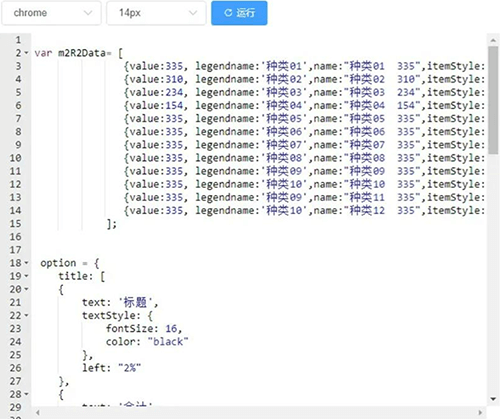
Vue-Ace-Editor介绍
Vue-Ace-Editor是一个基于Ace Editor的Vue组件,它允许开发者在 Vue.js 应用中集成功能强大的代码编辑器。Ace Editor 本身是一个独立的、高性能的代码编辑器,支持超过100种语言模式和50多个主题,非常适合用于需要在线代码编辑的应用场景。
主要特性
多语言支持:Ace Editor 支持多种编程语言的语法高亮显示,包括但不限于 JavaScript, Python, Java, C++, JSON 等。
主题丰富:提供多种预设的主题,用户可以根据自己的喜好选择不同的编辑器外观。
高度可定制化:不仅限于语言模式和主题的选择,Ace Editor 还提供了丰富的配置选项,如字体大小、行号显示、自动补全等。
插件系统:支持通过扩展来增加额外的功能,比如代码折叠、搜索替换、版本对比等。
跨平台兼容性:可以在桌面浏览器和移动设备上流畅运行。
在 Vue 中使用 Vue-Ace-Editor
根据您的 Vue 版本(Vue 2 或 Vue 3),您应该选择相应的包进行安装和使用:
对于 Vue 2,使用 vue2-ace-editor 和 brace
对于 Vue 3,使用 vue3-ace-editor 和 ace-builds
Vue3-Ace-Editor与Vue2-Ace-Editor安装、使用及功能差异
一、安装
1. 依赖包
| 组件 | 依赖安装命令 | 核心依赖库 |
|---|---|---|
vue2-ace-editor | npm install vue2-ace-editor brace --save | brace/mode/javascript |
vue3-ace-editor | npm install vue3-ace-editor ace-builds --save | ace-builds/src-noconflict/mode-javascript |
2. 配置
Vue3:需显式配置模块路径(如 ace.config.setModuleUrl),避免主题/语法加载失败。
// ace.config.js(独立配置文件)
import ace from 'ace-builds';
import modeJsonUrl from 'ace-builds/src-noconflict/mode-json?url';
ace.config.setModuleUrl('ace/mode/json', modeJsonUrl);  // 动态绑定语法模块路径
Vue2:通过 require 动态加载语法和主题文件。
methods: {
  editorInit() {
    require('brace/mode/javascript');  // 加载语法模式
    require('brace/theme/chrome');     // 加载主题
  }
}
二、使用方式对比
1. 组件注册
Vue3:通过 <script setup> 直接引入组件。
<script setup>
import { VAceEditor } from 'vue3-ace-editor';
</script>
Vue2:需手动注册组件。
import Editor from 'vue2-ace-editor';
export default {
  components: { Editor }
}
2. 核心配置
| 功能 | Vue3 示例(Composition API) | Vue2 示例(Options API) |
|---|---|---|
| 主题切换 | 动态绑定 theme 属性:<VAceEditor :theme="theme" /> | 需手动加载主题文件:require('brace/theme/chrome') |
| 语法模式 | 显式引入语法模块:import 'ace-builds/src-noconflict/mode-javascript' | 通过 @init 事件加载:require('brace/mode/javascript') |
| 代码补全 | 启用 enableLiveAutocompletion 选项 | 需加载 brace/ext/language_tools 扩展 |
| 响应式数据 | 使用 ref 或 reactive:const content = ref('') | 通过 v-model 和 data():data() { return { content: '' } } |
三、Vue3-Ace-Editor新增特性
1. 性能优化
Tree-shaking 支持:按需加载语法/主题模块,减少打包体积。
Proxy 响应式:基于 Vue3 的响应式系统,数据绑定效率更高。
2. 功能增强
Composition API 集成:支持 <script setup> 语法,逻辑组织更灵活。
const editorOptions = ref({
  enableSnippets: true,  // 启用代码片段
  fontSize: 14
});
TypeScript 原生支持:提供完整的类型定义。
动态主题切换:通过 :theme="theme" 属性实时切换主题。
3. 新功能扩展
Teleport 支持:可将编辑器渲染到任意 DOM 节点(如模态框)。
Suspense 异步加载:优化语法包加载体验。
四、关键代码示例对比
1. 主题与语法配置
Vue3(动态绑定 + 模块路径配置)
<VAceEditor
  :theme="theme"
  :lang="language"
  :options="{ enableLiveAutocompletion: true }"
/>
<script setup>
import 'ace-builds/src-noconflict/theme-monokai';  // 显式引入主题
</script>
Vue2(手动加载 + 事件初始化)
methods: {
  editorInit() {
    require('brace/theme/chrome');  // 手动加载主题
    this.editor.setOptions({ enableBasicAutocompletion: true });
  }
}
2. 自定义代码补全
Vue3(通过 addCompleter 扩展)
import { addCompleter } from 'ace-builds/src-noconflict/ext-language_tools';
addCompleter({
  getCompletions: (editor, session, pos, prefix, callback) => {
    callback(null, [{ value: 'customFunction', meta: '自定义方法' }]);
  }
});
Vue2(依赖 brace/ext/language_tools)
const completer = {
  getCompletions: function(editor, session, pos, prefix, callback) {
    callback(null, [{ value: 'function', meta: '方法' }]);
  }
};
ace.require('brace/ext/language_tools').addCompleter(completer);
五、完整代码示例
完整代码示例及详细注释
Vue 3 示例(使用 vue3-ace-editor)
<template>
  <!-- 使用 v-model:value 来绑定编辑器的内容 -->
  <VAceEditor
    v-model:value="content"
    :lang="language"
    :theme="theme"
    :options="editorOptions"
    style="height: 500px; width: 100%;"
  />
</template>
<script setup>
import { ref } from 'vue';
import { VAceEditor } from 'vue3-ace-editor'; // 引入 VAceEditor 组件
import 'ace-builds/src-noconflict/mode-javascript'; // 引入 JavaScript 模式支持
import 'ace-builds/src-noconflict/theme-github'; // 引入 GitHub 主题样式
// 定义编辑器的内容、语言模式、主题和配置选项
const content = ref(`console.log('Hello, Ace Editor!');`); // 初始化代码内容
const language = ref('javascript'); // 设置默认语言为 JavaScript
const theme = ref('github'); // 设置默认主题为 GitHub 风格
// 编辑器的配置选项,如字体大小、是否显示打印边距等
const editorOptions = ref({
  fontSize: '14px', // 设置字体大小
  showPrintMargin: false, // 是否显示打印边距
  enableLiveAutocompletion: true, // 启用实时自动补全功能
});
</script>
<!-- 注释:以上代码展示了如何在 Vue 3 中使用 vue3-ace-editor。通过 Composition API 和 <script setup> 语法糖,我们可以简洁地引入组件,并利用 Vue 3 的响应式系统来管理状态。 -->
Vue 2 示例(使用 vue2-ace-editor)
<template>
  <!-- 创建一个容器用于放置 Ace 编辑器 -->
  <div>
    <ace-editor
      v-model="content"
      @init="editorInit"
      :theme="theme"
      :lang="lang"
      :config="config"
      :readOnly="readOnly"
      :height="height">
    </ace-editor>
  </div>
</template>
<script>
import 'brace/ext/language_tools'; // 引入自动补全功能
import 'brace/mode/javascript'; // 引入 JavaScript 模式支持
import 'brace/snippets/javascript'; // 引入 JavaScript 代码片段支持
import 'brace/theme/chrome'; // 引入 Chrome 主题样式
import AceEditor from 'vue2-ace-editor'; // 引入 AceEditor 组件
export default {
  name: 'SqlEditor',
  components: { aceEditor: AceEditor }, // 注册组件
  data() {
    return {
      content: '', // 初始内容为空字符串
      height: 500, // 设置编辑器高度
      readOnly: false, // 设置是否只读
      theme: 'chrome', // 设置默认主题为 Chrome 风格
      lang: 'javascript', // 设置默认语言为 JavaScript
      config: {
        fontSize: 16, // 设置字体大小
      },
    };
  },
  computed: {
    options() {
      return {
        enableBasicAutocompletion: true, // 启用基本的自动补全功能
        enableSnippets: true, // 启用代码段功能
        showPrintMargin: false, // 不显示打印边距
        fontSize: this.config.fontSize, // 根据 config 动态设置字体大小
        readOnly: this.readOnly, // 根据属性动态设置只读状态
      };
    },
  },
  methods: {
    editorInit(editor) {
      // 初始化逻辑:可以在这里添加自定义命令、监听事件等
      editor.commands.addCommand({
        name: 'myCommand',
        bindKey: { win: 'Ctrl-M', mac: 'Command-M' }, // 绑定快捷键
        exec: function(editor) {
          console.log('Custom command executed');
        }
      });
    },
  },
};
</script>
<!-- 注释:以上代码展示了在 Vue 2 中使用 vue2-ace-editor。通过 Options API,我们手动注册了 AceEditor 组件,并设置了初始内容、主题、语言等配置。还演示了在初始化时添加自定义命令和启用自动补全功能。 -->
六、总结与适用场景
维度 vue2-ace-editor vue3-ace-editor
框架适配 Vue2 + Options API Vue3 + Composition API
性能优化 依赖全量加载 brace Tree-shaking + Proxy 响应式
功能扩展 基础补全、主题切换 Teleport、Suspense、多根节点支持
开发体验 手动管理依赖,配置复杂 模块化路径配置,TypeScript 友好
适用场景:
Vue2 项目:直接使用 vue2-ace-editor,但需注意 brace 的维护状态。
Vue3 项目:优先选择 vue3-ace-editor,充分利用 Composition API 和性能优化。