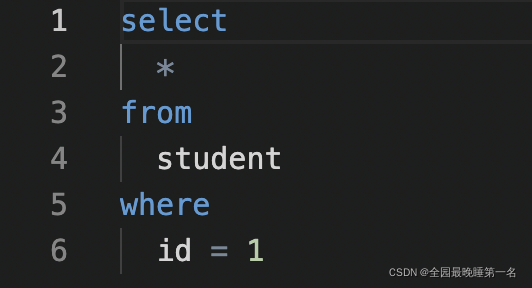
特效介绍
微软之前有个项目叫做 Monaco Workbench,后来这个项目变成了VSCode,而 Monaco Editor 就是从这个项目中成长出来的一个web编辑器,他们很大一部分的代码(monaco-editor-core)都是共用的,所以monaco和VSCode在编辑代码,交互以及UI上几乎是一摸一样的,有点不同的是,两者的平台不一样,monaco基于浏览器,而VSCode基于electron,所以功能上VSCode更加健全,并且性能比较强大。
简单来讲,monaco-editor 是一个浏览器版本的 vscode。目前很多浏览器上的 "云编辑器" 都是基于 monaco-editor 来做的。
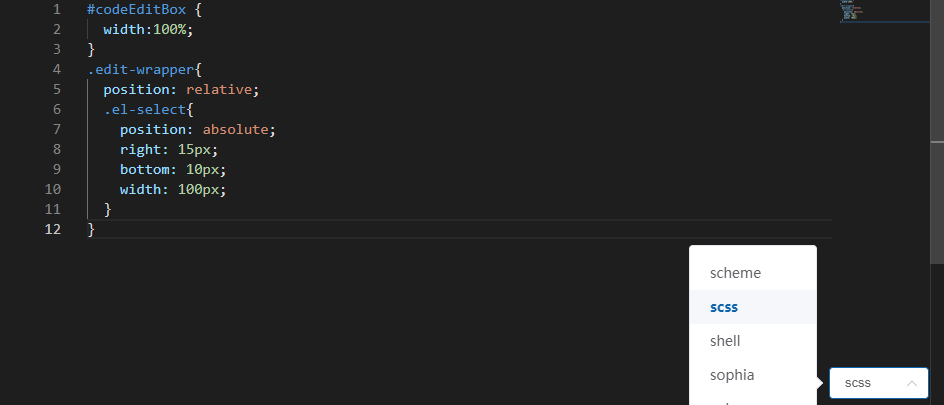
前端框架使用Vue3 + elementUI
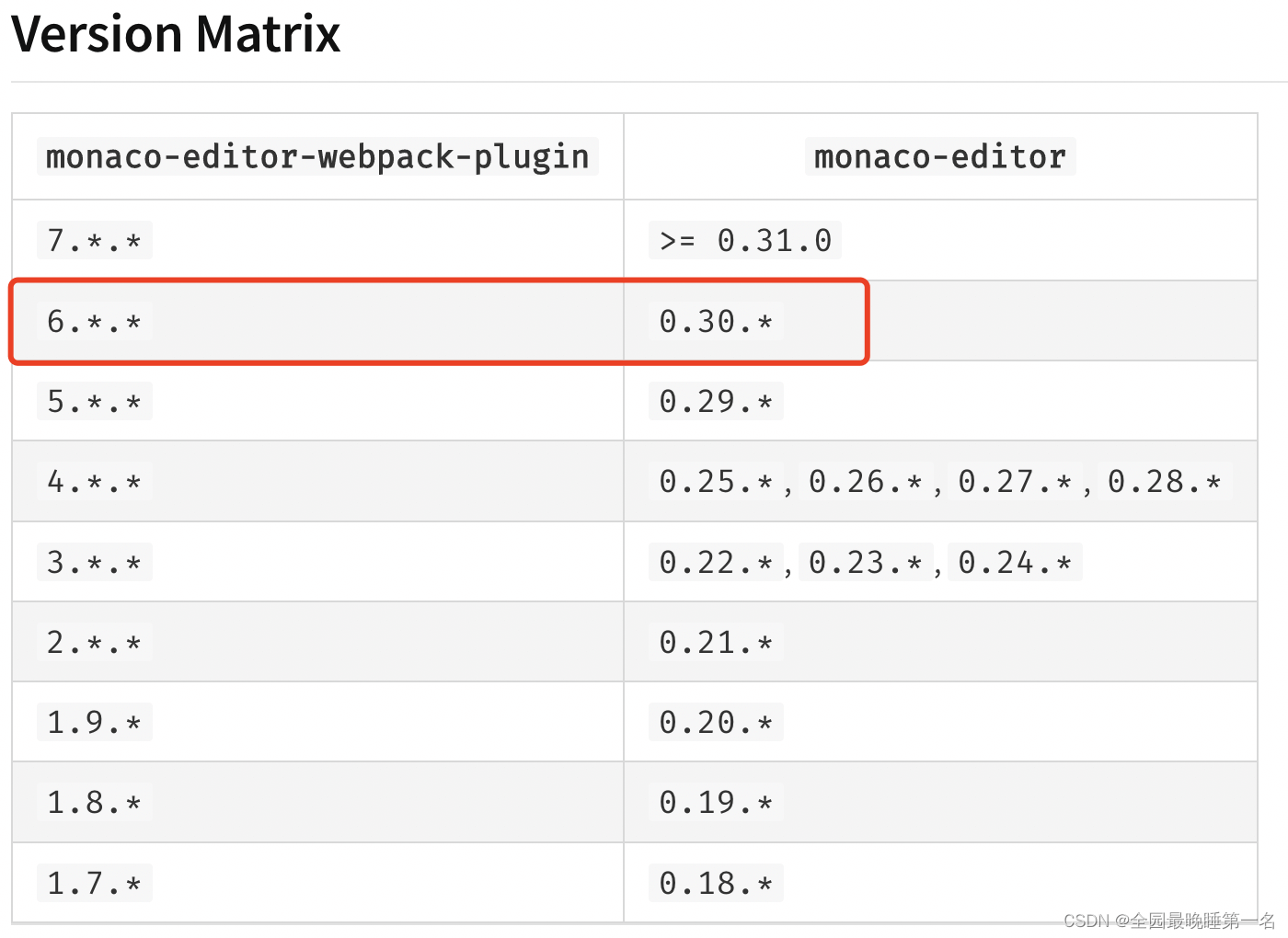
monaco-editor插件版本@0.30.1
monaco-editor-webpack-plugin插件版本@6.0.0
注意:monaco-editor和monaco-editor-webpack-plugin版本问题
具体可查看monaco-editor和monaco-editor-webpack-plugin版本对应
使用方法
安装
npm install monaco-editor@0.30.1 --save
npm install monaco-editor-webpack-plugin@6.0.0 --save
webpack插件配置,下面两种使用其中一种即可
configureWebpack配置方法:
// vue.config.js
const MonacoWebpackPlugin = require('monaco-editor-webpack-plugin')
module.exports = {
  configureWebpack: {
    plugins: [
      new MonacoWebpackPlugin()
    ]
  }
}
chainWebpack配置方法:
// vue.config.js
const MonacoWebpackPlugin = require('monaco-editor-webpack-plugin')
module.exports = {
chainWebpack: config => {
config.plugin('monaco').use(new MonacoWebpackPlugin())
},
}
引用
// MonacoEditor.vue(需要使用monaco-editor的页面)
import * as monaco from 'monaco-editor'
使用
1. MonacoEditor初始化
import * as monaco from 'monaco-editor'
import { ref, toRaw } from 'vue'
import $ from 'jquery'
export default{
  setup() {
    const editor = ref(null)
    const initEditor = () => {
      // 初始化编辑器,确保dom已经渲染
      editor.value = monaco.editor.create(document.getElementById('codeEditBox'), {
        value: '', //编辑器初始显示文字
        language: 'python', //此处使用的python,其他语言支持自行查阅demo
        theme: 'vs-dark', //官方自带三种主题vs, hc-black, or vs-dark
        selectOnLineNumbers: true,//显示行号
        roundedSelection: false,
        readOnly: false, // 只读
        cursorStyle: 'line', //光标样式
        automaticLayout: true, //自动布局
        glyphMargin: true, //字形边缘
        useTabStops: false,
        fontSize: 15, //字体大小
        autoIndent: true, //自动布局
        quickSuggestionsDelay: 100, //代码提示延时
      });
      // 监听值的变化
      editor.value.onDidChangeModelContent((val) => {
      console.log(val.changes[0].text)
      })
    }
    $(document).ready(function () {
      initEditor()
    })
    return {
      editor,
    }
  },
}
#codeEditBox {
  width:100%;
  height:200px;
}
2. 获取编辑器中的文本
点击获取值{{ content }}import * as monaco from 'monaco-editor'
import { ref, toRaw } from 'vue'
import $ from 'jquery'
export default{
  setup() {
    const content = ref("")

    const handleValue = () => {
      content.value = toRaw(editor.value).getValue()
    }
    return {
      content
    }
  },
}
这里要注意,editor不能与vue绑定,否则getValue会导致卡死
3. 切换主题
import * as monaco from 'monaco-editor'
import { ref, toRaw } from 'vue'
import $ from 'jquery'
export default{
  setup() {
    const editor = ref(null)
    const editorTheme = ref("vs-dark")
    const initEditor = () => {
      // 初始化编辑器,确保dom已经渲染
      editor.value = monaco.editor.create(document.getElementById('codeEditBox'), {
      // ..... 其他设置不变,修改theme,绑定editorTheme
        theme: editorTheme.value,
        // ......
      });
    }
    $(document).ready(function () {
      initEditor()
    })
    const handleTheme = () => {
      monaco.editor.setTheme(editorTheme.value)
    }
    return {
      editor,
      handleTheme,
      editorTheme,
    }
  },
}
4. 切换语言Language
    import api from '@/api'
import * as monaco from 'monaco-editor'
import { ref, toRaw } from 'vue'
import $ from 'jquery'
import { format } from 'sql-formatter'
export default{
  setup() {
    const editor = ref(null)
    const language = ref("python")
    const languageOptions = ref(["bat", "cpp", "css", "dockerfile", "go", "graphql", "html", "ini",
      "java", "javascript", "json", "julia", "kotlin", "less", "markdown", "mysql", "objective-c", "pascal", "pascaligo",
      "perl", "php", "powershell", "python", "r", "redis", "rust", "scala", "scheme", "scss", "shell",
      "sophia", "sql", "swift", "tcl", "typescript", "xml", "yaml"])
    const initEditor = () => {
      editor.value = monaco.editor.create(document.getElementById('codeEditBox'), {
        // ...... 其他设置不变,修改language,绑定language
        language: language.value, //语言支持自行查阅demo
        // ......
      });
    }
    $(document).ready(function () {
      initEditor()
    })
    const handleLanguage = (item) => {
      language.value = item
      monaco.editor.setModelLanguage(toRaw(editor.value).getModel(), language.value)
      // console.log(toRaw(editor.value).getModel().getLanguageId())
    }
    return {
      editor,
      language,
      handleLanguage,
      languageOptions,
    }
  },
}
5. 格式化JSON和SQL
1. 安装sql-formatter(json的格式化,monaco-editor是自带的,直接使用即可)
npm install sql-formatter -s
2. 引入
import { format } from 'sql-formatter'格式化import * as monaco from 'monaco-editor'
import { ref, toRaw } from 'vue'
import { format } from 'sql-formatter'
export default{
  setup() {
    const handleFormat = () => {
      let lan = toRaw(editor.value).getModel().getLanguageId()
      console.log(lan)
      let content = toRaw(editor.value).getValue()
      if (lan == 'sql'){ // 格式化sql
        toRaw(editor.value).setValue(format(content))
      }
      else if (lan == 'json') { // 格式化json
        toRaw(editor.value).trigger('anyString', 'editor.action.formatDocument')
        toRaw(editor.value).setValue(content)
      }
    }
    return {
      handleFormat
    }
  },
}
效果如图
json
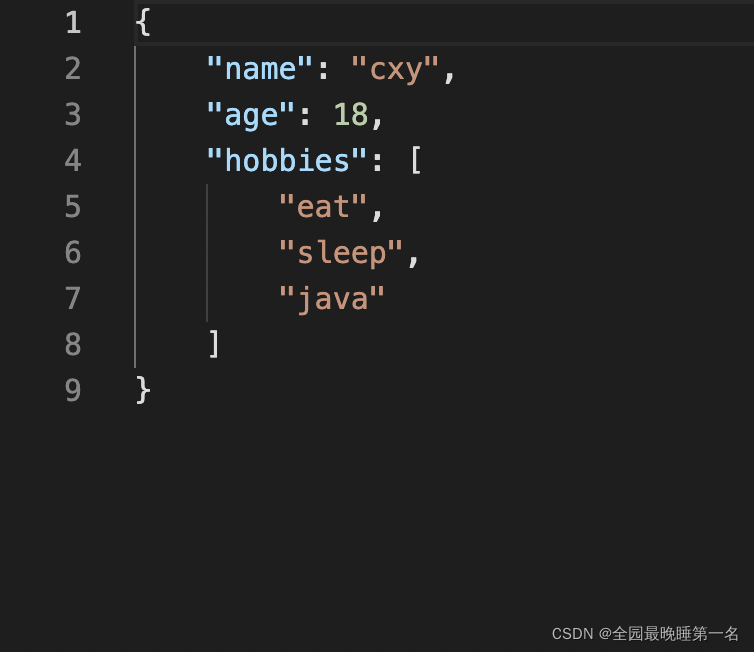
sql