
我爱模板网再做一个小项目,不想使用element plus、antd这种重量级框架,但是又觉得element plus的提示插件很美观,于是就自己动手封装了一个轻量级的,不依赖任何插件的toat提示插件。
先看下插件效果:
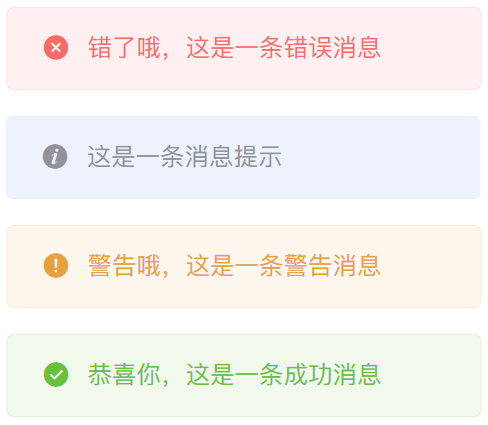
插件npm地址:https://www.npmjs.com/package/hxz-light-toast?activeTab=readme
封装流程:
1、Vue CLI创建项目,项目名叫:hxz-light-toast
vue create hxz-light-toast
2、修改文件夹
将src文件夹重命名为test,用来测试插件,并且复制一份src文件夹,用来编写插件,删除src/App.vue。
3、修改package.json中的scripts如下:
"scripts": {
  "test": "vue-cli-service serve test/main.js",
  "build": "vue-cli-service build --target lib --name index src/main.js"
},
其中test脚本是配置测试demo的启动,与正常的 vue 项目启动一致,只是修改了一下路径跟脚本名。因为是开发的一个插件,打包时不能像普通vue项目一样打包成应用,而是要打包成库。Vue脚手架(Vue CLI)可以直接打包库,命令如下:
vue-cli-service build --target lib --name myLib [entry]
4、在src的components下新建hxz-light-toast.vue:
<template>
  <Transition name='fade'>
    <div v-if="isShow" :class="['message', tipType]">{{ tipText }}</div>
  </Transition>
</template>
<script setup>
import { ref, defineExpose } from 'vue';
const isShow = ref(false)
const tipText = ref('默认提示内容')
const tipType = ref('info')
const show = (str, type = 'info', time = 2000) => {
  tipText.value = str
  tipType.value = type
  isShow.value = true
  setTimeout(() => {
    isShow.value = false
  }, time);
}
const hide = () => isShow.value = false
defineExpose({
  show,
  hide
})
</script>
<style scoped>
.message {
  background: #edf2fc url('../assets/icon-info.png') no-repeat 20px center/14px 14px;
  color: #909399;
  border: 1px solid #ebeef5;
  height: 40px;
  line-height: 38px;
  padding: 0 20px 0 45px;
  border-radius: 5px;
  position: fixed;
  top: 25px;
  left: 50%;
  transform: translate(-50%, 0);
  font-size: 14px;
  z-index: 200000;
}
.message.info{
  background-color: #edf2fc;
  background-image: url('../assets/icon-info.png');
  color: #909399;
  border: 1px solid #ebeef5;
}
.message.success{
  background-color: #f0f9eb;
  background-image: url('../assets/icon-success.png');
  color: #67c23a;
  border: 1px solid #e1f3d8;
}
.message.error{
  background-color: #fef0f0;
  background-image: url('../assets/icon-error.png');
  color: #f56c6c;
  border: 1px solid #fde2e2;
}
.message.warning{
  background-color: #fdf6ec;
  background-image: url('../assets/icon-warning.png');
  color: #e6a23c;
  border: 1px solid #faecd8;
}
.fade-enter-from{
  opacity: 0;
  transform:translate(-50%, -100px)
}
.fade-enter-active{
  transition: all 500ms linear;
}
.fade-enter-to{
  opacity: 1;
  transform: translate(-50%, 0)
}
.fade-leave-from{
  opacity: 1;
  transform: translate(-50%, 0)
}
.fade-leave-active{
  transition: all 500ms linear;
}
.fade-leave-to{
  opacity: 0;
  transform:translate(-50%, -100px)
}
</style>
5、在src/main.js导出插件:
import { createVNode, render } from 'vue'
import Toast from './hxz-light-toast.vue'
export default {
  install(app) {
    // 将组件转换为虚拟DOM
    const Vnode = createVNode(Toast)
    // 将虚拟DOM挂载到页面节点上
    render(Vnode, document.body)
    // 将插件的主要方法挂载到 app.config.globalProperties 上,这里的 $toast 是自定义的
    app.config.globalProperties.$toast = {
      // 这里仅挂载了一个 show 方法到 $toast 上
      show(str, time) {
        Vnode.component?.exposed?.show(str, time)
      },
    }
  },
}
上面的代码解释的很清楚了,这里不再多说。
6、测试插件
在test的App.vue配置如下代码来测试插件:
<template>
  <div></div>
</template>
<script>
export default {
  name: 'App',
  created() {
    this.$toast.show('这是一条消息提示')
  }
}
</script>
运行,没有问题,效果见文章开头的图片
至此,插件就封装好了。
打包发布见:编写一个vue3插件并发布它