使用方法:
1、下载插件
# vue-codemirror
npm install vue-codemirror --save
# JSON校验器插件
npm install jsonlint-mod --save
2、在main.js引入vue-codemirror
import VueCodemirror from 'vue-codemirror'
Vue.use(VueCodemirror)
3、在使用form-create-designer的页面引入相关css和js
import jsonlint from 'jsonlint-mod';
import 'codemirror/addon/lint/lint'
import 'codemirror/addon/lint/json-lint'
import 'codemirror/lib/codemirror.css'
import 'codemirror/addon/lint/lint.css'
import 'codemirror/addon/edit/matchbrackets.js'
import 'codemirror/mode/javascript/javascript.js'
4、HTML代码
<template>
  <div class="form-container">
    <el-row>
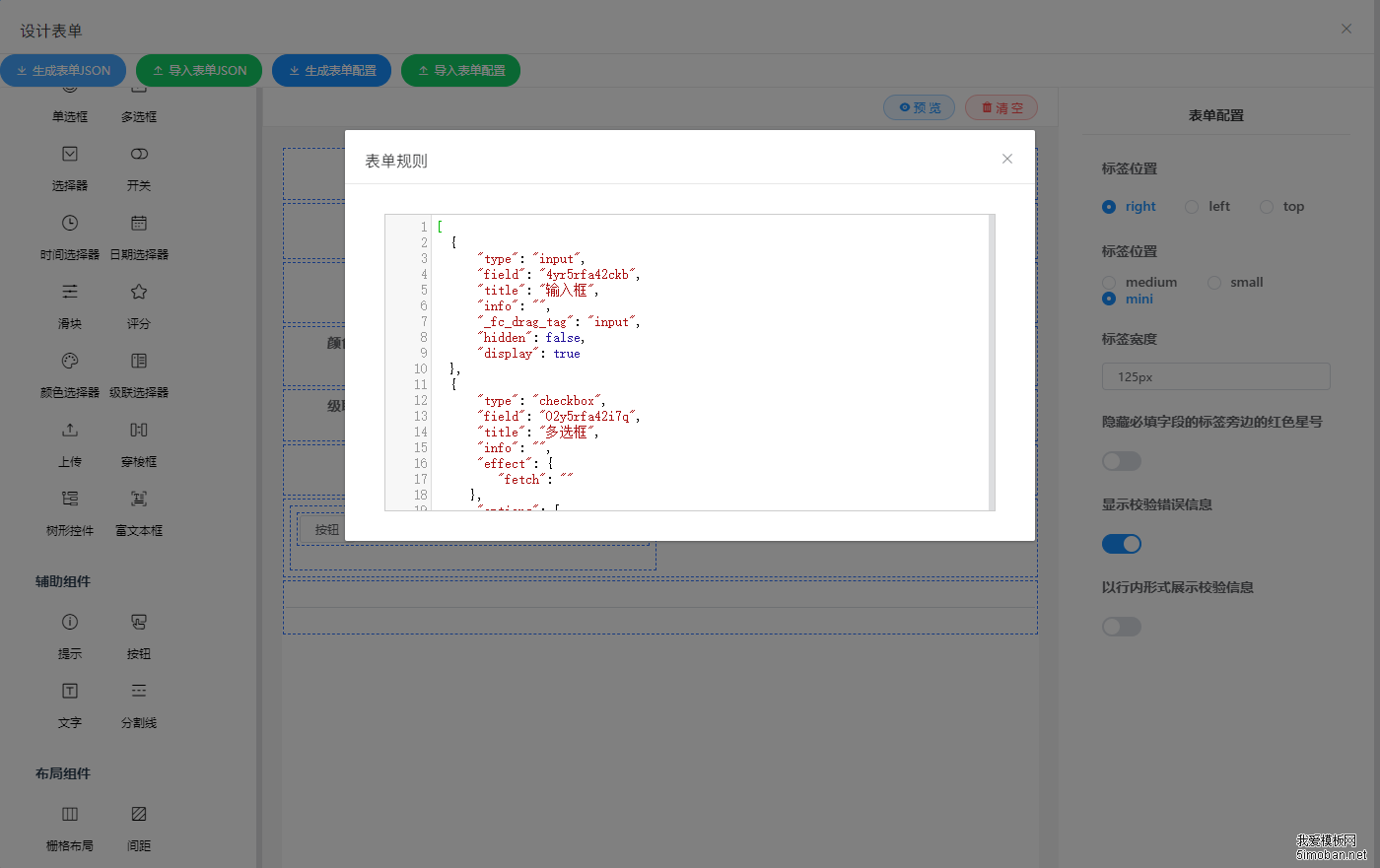
      <el-button icon="el-icon-download" type="primary" size="small" round @click="handleDownloadRule()">生成表单JSON</el-button>
      <el-button icon="el-icon-upload2" type="success" size="small" round @click="handleUploadRule()">导入表单JSON</el-button>
      <el-button icon="el-icon-download" type="primary" size="small" round @click="handleDownloadOption()">生成表单配置</el-button>
      <el-button icon="el-icon-upload2" type="success" size="small" round @click="handleUploadOption()">导入表单配置</el-button>
    </el-row>

    <!--form-create-designer-->
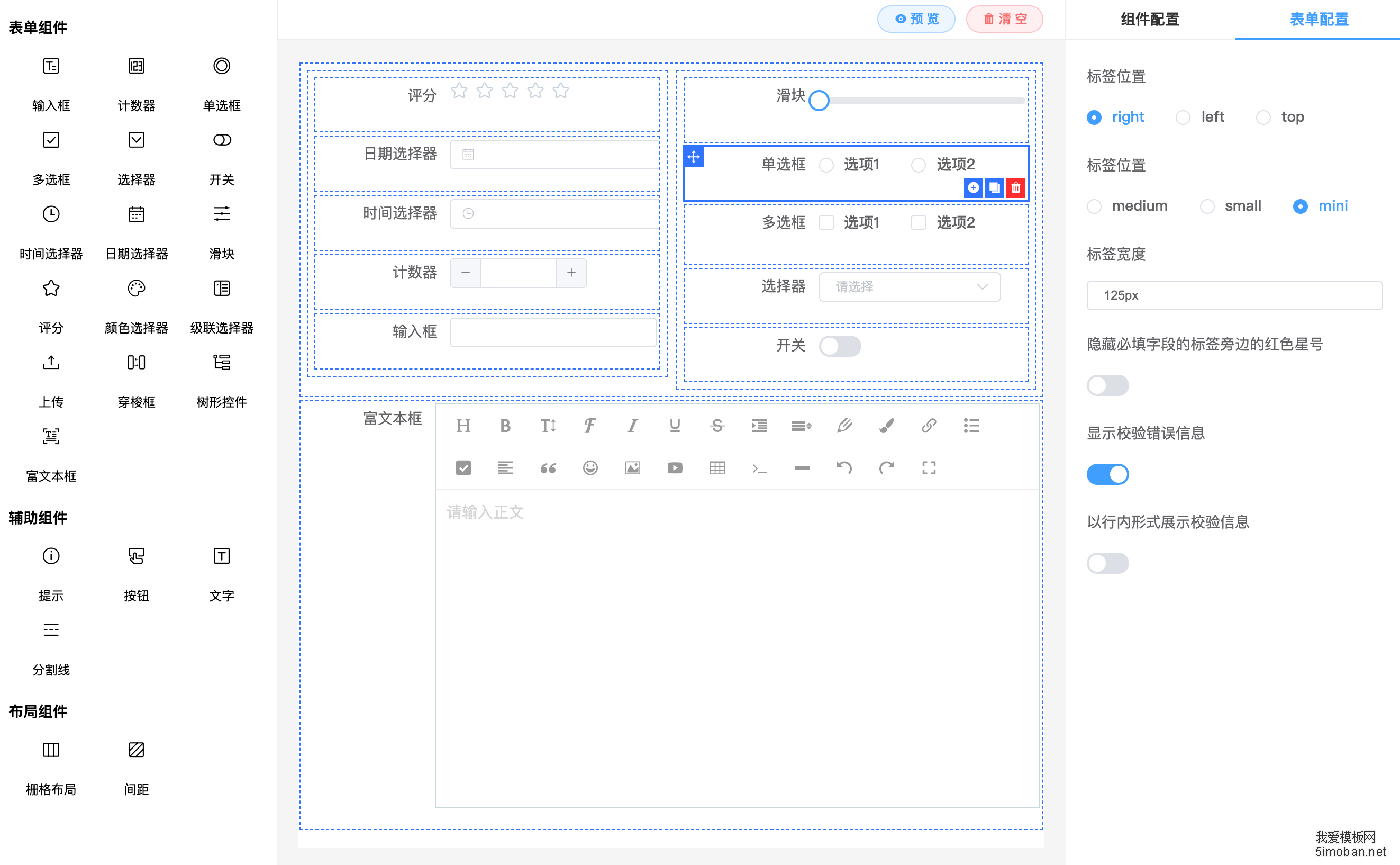
    <fc-designer ref="designer" />

    <!--代码预览-->
    <el-dialog :title="dialogTitle" :visible.sync="dialogState" :close-on-click-modal="false" append-to-body>
      <!--vue-codemirror-->
      <codemirror v-model="codemirrorContent" :options="codemirrorOptions" style="height: 90%;text-align: left;border: 1px solid #ccc;" />
      <el-row v-if="dialogMenu">
        <el-button @click="dialogState = false">取 消</el-button>
        <el-button type="primary" @click="handleImport()">导 入</el-button>
      </el-row>
    </el-dialog>
  </div>
</template>
5、js关键代码:
export default {
    beforeCreate() {
        // 开启JSON校验
        window.jsonlint = jsonlint
    },
    data() {
        return {
            dialogTitle: '', // 对话框标题
            dialogState: false, // 对话框状态
            dialogMenu: false, // 对话框菜单状态

            // codemirror配置
            codemirrorOptions: {
                mode: "application/json",
                theme: "default",
                gutters: ['CodeMirror-lint-markers'],
                tabSize: 2,
                lint: true,
                line: true,
                lineNumbers: true,
                matchBrackets: true,
                lineWrapping: true,
                styleActiveLine: true,
                readOnly: false
            },
            // codemirror内容
            codemirrorContent: null
        }
    },
    components: {
        codemirror
    },
    methods: {
        // 导出表单JSON
        handleDownloadRule(){
            this.dialogTitle = "表单规则"
            this.dialogState = true
            this.dialogMenu = false

            this.codemirrorOptions.readOnly = true
            this.codemirrorContent = JSON.stringify(this.$refs.designer.getRule(),
                                                    null, 2)
        },
        // 导出表单配置
        handleDownloadOption(){
            this.dialogTitle = "表单配置"
            this.dialogState = true
            this.dialogMenu = false

            this.codemirrorOptions.readOnly = true
            this.codemirrorContent = JSON.stringify(this.$refs.designer.getOption(),
                                                    null, 2)
        },
        // 导入表单JSON
        handleUploadRule(){
            this.dialogTitle = "导入表单规则"
            this.dialogState = true
            this.dialogMenu = true

            this.codemirrorOptions.readOnly = false
            this.codemirrorContent = JSON.stringify([], null, 2)
        },
        // 导入表单配置
        handleUploadOption(){
            this.dialogTitle = "导入表单配置"
            this.dialogState = true
            this.dialogMenu = true

            this.codemirrorOptions.readOnly = false
            this.codemirrorContent = JSON.stringify({}, null, 2)
        },
        // 配置导入
        handleImport(){
            try {
                let content = JSON.parse(this.codemirrorContent)
                if(this.dialogTitle == "导入表单规则"){
                    this.$refs.designer.setRule(content)
                }
                if(this.dialogTitle == "导入表单配置"){
                    this.$refs.designer.setOptions(content)
                }
                this.dialogState = false
            } catch(e) {
                alert('输入内容格式有误!')
            }
        }
    }
}
部分素材资源来源网站,本站提供免费下载,如有侵权请联系站长马上删除!